eero Wi-Fi Support
We’re here to help
For help using and troubleshooting your eero Wi-Fi enhancer device. If you can’t find the answers you are looking for, you can contact us by phone, email, or chat.
For more information on everything eero, visit our Whole Home Wi-Fi page.
Resources
FAQs
How do I set up my eero app?
First, download the eero app from the Apple App Store or Google Play store on your iOS or Android device. Next, open the app and create an eero account by entering your email or mobile number, and then entering the verification code you receive. The app assists you with how to set up eero with an existing router or modem by plugging in your first eero device to your Bluepeak ONT or gateway device. The next step is to create a Wi-Fi name and password so your devices can connect to the internet using the eero-enabled Bluepeak fiber internet service.
Click here for a step-by-step guide
How do I download the eero app?
You can find the eero app in the Apple App Store for iOS devices or the Google Play store for Android devices. Just open the store on your device and search for “eero.” The eero app is compatible with iPhones and iPads running iOS 13 or later. It’s also compatible with Android devices like smartphones and tablets running Android 7.0 or later. The app becomes your major tool to learn how to connect eero to Wi-Fi and manage your login credentials. You can also use the app to run a speed test to see how fast your Wi-Fi is.
I’m having trouble with my internet connection. What should I do?
If you’re having trouble with your internet connection, here are some steps you can take to troubleshoot the issue:
- Restart your modem and router: Unplug both devices, wait for about 30 seconds, then plug them back in. This can resolve many connection issues.
- Check cables: Ensure all cables are securely connected to your modem, router, and wall outlet. Look for any visible damage to the cables.
- Test your connection: Use a device to check if the issue is affecting all devices or just one. If only one device is having issues, try reconnecting it to the network.
- Check for outages: Text ‘OUTAGE’ to 888-975-4258 to inquire about a service outage in your area.
- Contact customer service: If the problem persists, contact our customer support team for further assistance.
How do I reboot my eero or network from the app?
If you need to reboot your individual eeros or your entire network, it’s as simple as tapping a button in the eero app.
Why would I reboot my eero?
While most customers never need to reboot their eeros, power cycling your electronics is a common troubleshooting step. Also, for your convenience, being able to reboot your eeros from the app means you won’t need to unplug each individual eero.
Some common reasons to reboot your eeros:
- You sense slow speeds on your network
- You’re having an issue with one of your connected devices
- A connected device is connected to the wrong eero
How do I reboot my eero?
To reboot your eero open the Home tab and tap on the Online status button in the top center of the screen. Tap on the eero you’d like to reboot to open its options menu, then scroll down to “Advanced.” Tap on the Restart button and then select “Restart eero” from the list of sub-options available.
For more information click here for the eero mobile app user guide.
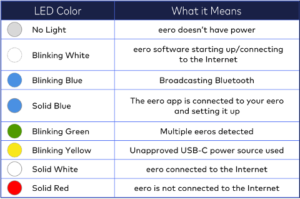
What do the colors of the LED lights on my eero mean?
On the front of your eero, there is a LED status light. When everything is running correctly, your eero’s light will be solid white. If your LED is in a different state, including a different color or is blinking/flashing, please refer to the list below: