
Bluepeak Voice Platform Migration
Why Bluepeak is upgrading your voice platform
The new Bluepeak voice platform creates a stronger foundation for dependable calling and future service improvements. Most of the migration will happen behind the scenes, but your current voicemail messages and custom greeting will not automatically transfer.
This upgrade will bring:
- Long-term platform stability
- Improved service resiliency and reliability
- Access to future voice features and enhancements
Action required by October 12th
Complete the following steps before the upgrade
- Review your voicemails. Voicemail messages will not transfer to the new platform.
- Download any voicemail messages you wish to keep.
Complete the following steps after the upgrade
- Re-record your custom voicemail greeting if desired.
Residential Customers
How to Check and Save your Voicemail Messages
Voicemail allows you to retrieve and manage your voicemail messages. Refer to Image 5.1 for instructions on managing this feature:
1. Click the Voice Messages link to open the feature page. This will load a page like Image 5.1.
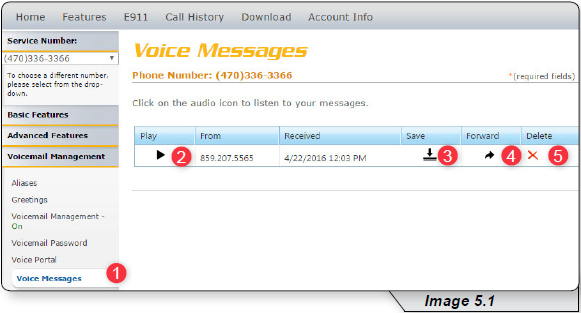
2. Click Play to listen to a voicemail.
3. Click Save to download the voicemail as a WAV file to your computer.
4. Click Forward to forward a voicemail.
5. Click Delete to delete a voicemail.
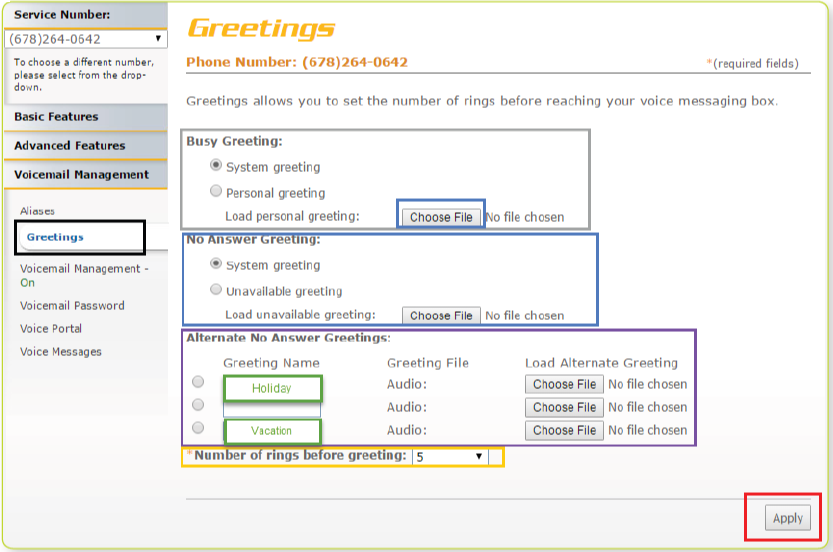
How to Re-record your Customized Greeting
The greeting section allows you to set and change parameters that affect your voicemail greetings. Click the Greetings link on the left-hand side of your screen.
Business Customers
How to Check and Save your Voicemail Messages
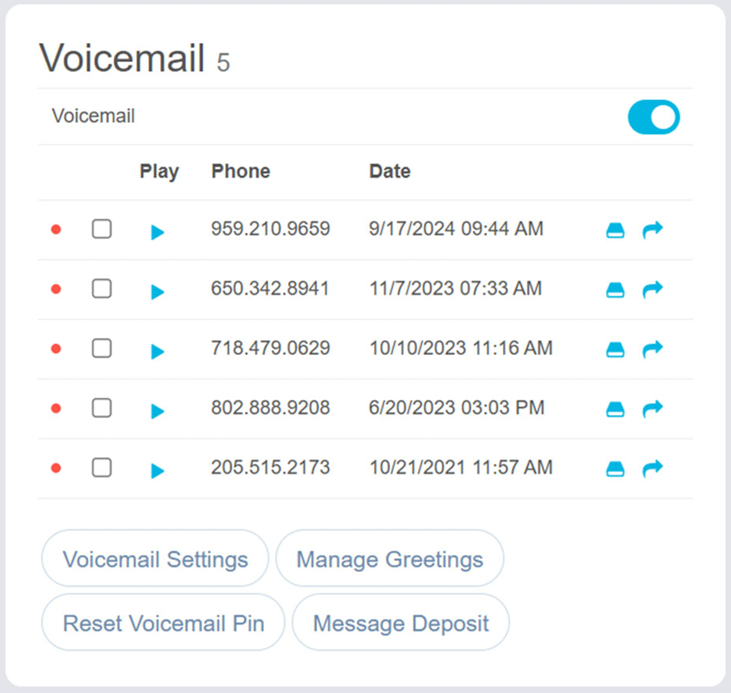
The Voicemail card displays your current voicemail messages and common management tools on the Dashboard. It provides quick access to additional messages, voicemail-related tools, and options for updating your voicemail PIN.
Enable or Disable Voicemail

Use the On/Off toggle at the top of the Voicemail card to enable or disable voicemail directly from the Dashboard.
Play Voicemail

Select the Play icon next to a voicemail to listen to the message online.
Download Voicemail

Select the Download icon next to a message to save a copy of the voicemail file to your computer or system.
Forward Voicemail

Select the Forward icon next to a message to send the voicemail .wav file to an email address.